When a white letter or highlight belongs to your logo, look for a clear boundary around it before removing the white background. In PhotoToSticker’s connected cleanup preview, a purple shape protected an enclosed white star. An otherwise identical star opened to the edge through a narrow white path and turned transparent with the surrounding background.
Decide what each white area should do
Picture the mark on a colored card. If a white letter should stay white, it needs opaque pixels. If the card should show through the middle of a shape, that opening needs transparent pixels. A flattened file can show the same white color in both places.
| What you see in the source | What to inspect |
|---|---|
| A white shape surrounded by a contrasting color | Check that it remains white on the dark preview. |
| A white area that meets the exterior through a gap | Follow the path to the image edge and check whether that area clears. |
| A closed white opening meant to reveal the surface below | Use the original artwork or edit that region separately in a layer-capable editor. |
Compare two stars with the same white pixels
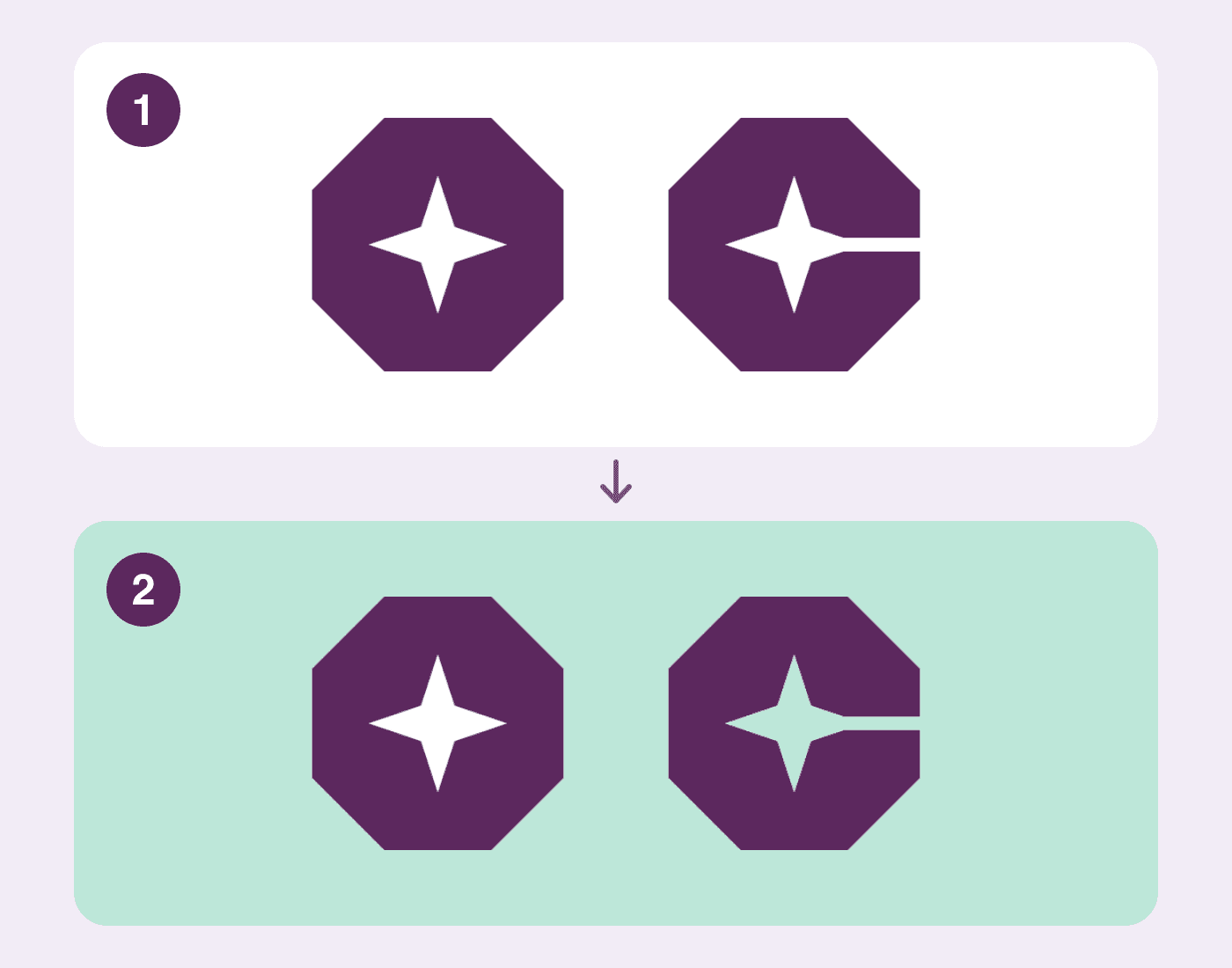
Panel 1 shows the original artwork. Panel 2 places the actual processed preview over mint to reveal its transparent areas. PhotoToSticker created the artwork and comparison on November 10, 2026.
Both star centers started opaque white. With edge tolerance at 24, the left center stayed opaque white. The right center, its connecting path and the outside became transparent. The mint is a display surface added for the comparison.
Original comparison PNG · Processed preview PNG
Reproduce the preview
- Open Logo Sticker Maker and choose the original sample or a logo you have permission to edit. A flat background and a clear outline make the result easier to judge.
- Keep the background setting transparent. Set Border width to zero for this comparison so a white backing cannot fill clear parts of the artwork.
- Leave Edge tolerance at 24 for the sample and select Remove connected background. Switch between Original and Processed and compare the white and dark surfaces.
- If a pale stroke fades or the background remains, change the tolerance in small steps and apply cleanup again. The setting controls which similar pixels qualify along the connected path. Restore original lets you start over.
Check the file you will hand off
In this test the tool’s final PNG download displayed a broken-image symbol. The two downloads above contain the source artwork and the processed preview used in the comparison. For a finished asset, reopen the exact file you plan to send and compare it with the intended artwork on a colored surface. If a required detail disappears or a closed opening needs selective editing, return to the layered or vector master.
For a file that looks white after saving, check how the viewer displays transparency. Sticker PNG transparency check
Once the interior artwork is correct, decide whether the sticker needs an outline. White sticker border guide