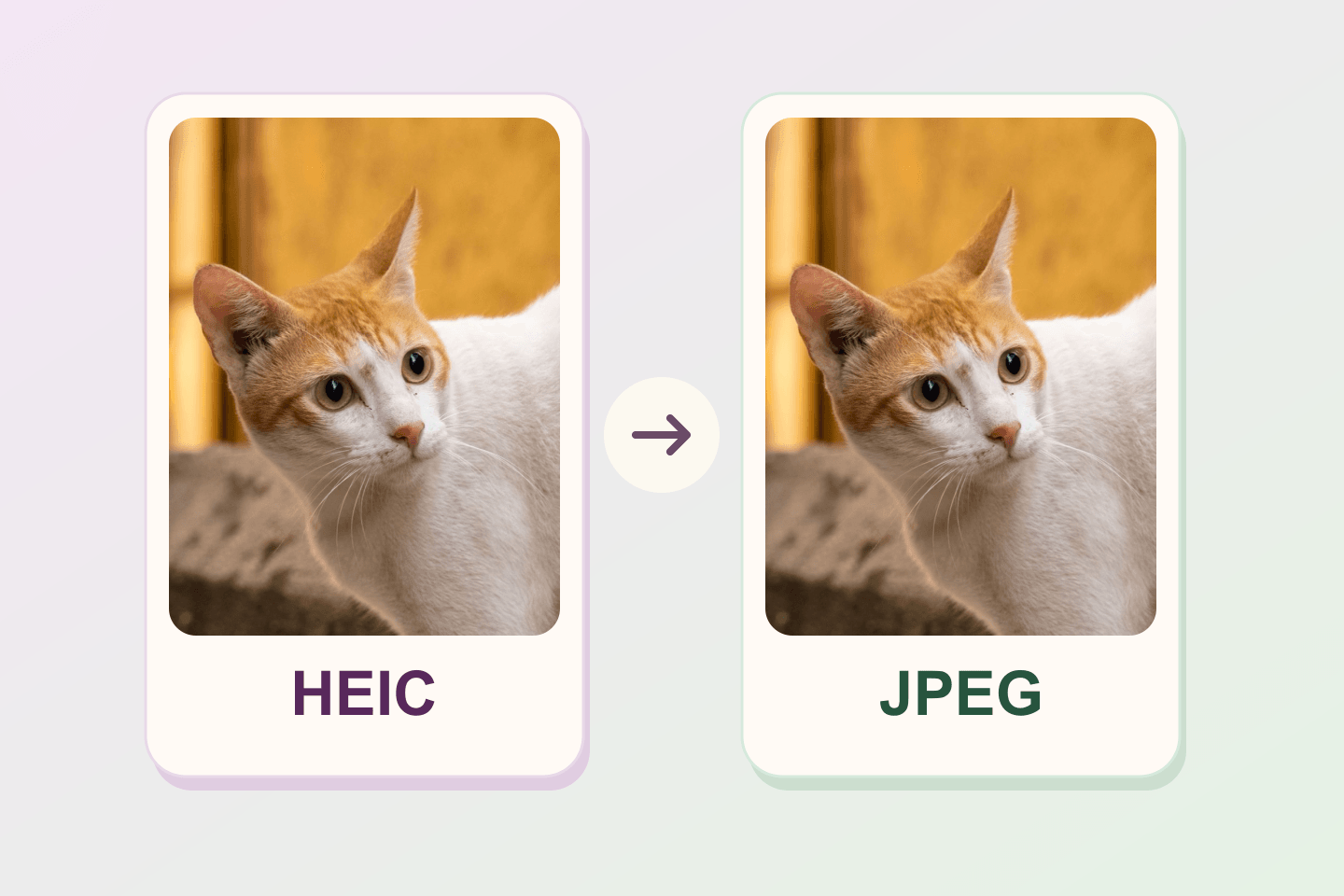
If Sticker Studio can select your iPhone photo but says it cannot open it, export that photo as a JPEG copy and choose the copy. The studio accepts HEIC as an input type and then asks your browser to open the image. Those two checks can give different results.
Keep the original, especially if you plan to edit it later. Make the JPEG from that original once and use the copy as the sticker source.
See what happened with the same photo
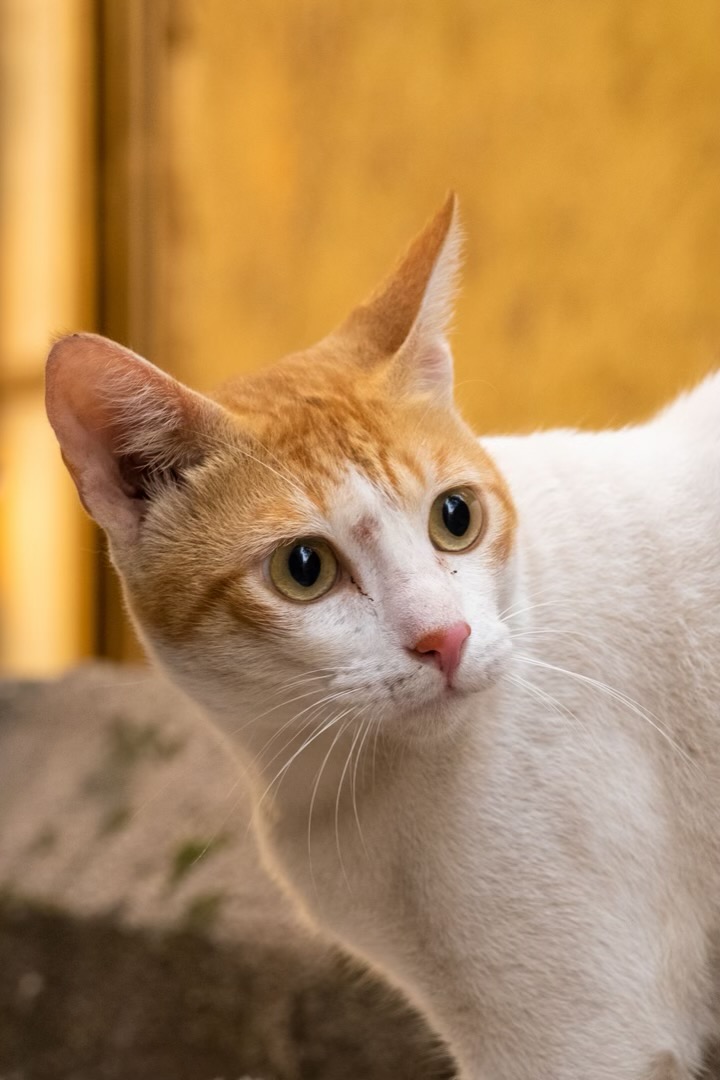
We resized a licensed cat photo to 720 × 1080 pixels, encoded it as HEIC, and exported a JPEG from that HEIC. On November 11, 2026, we selected both files in the live studio using two Playwright desktop browsers on macOS.
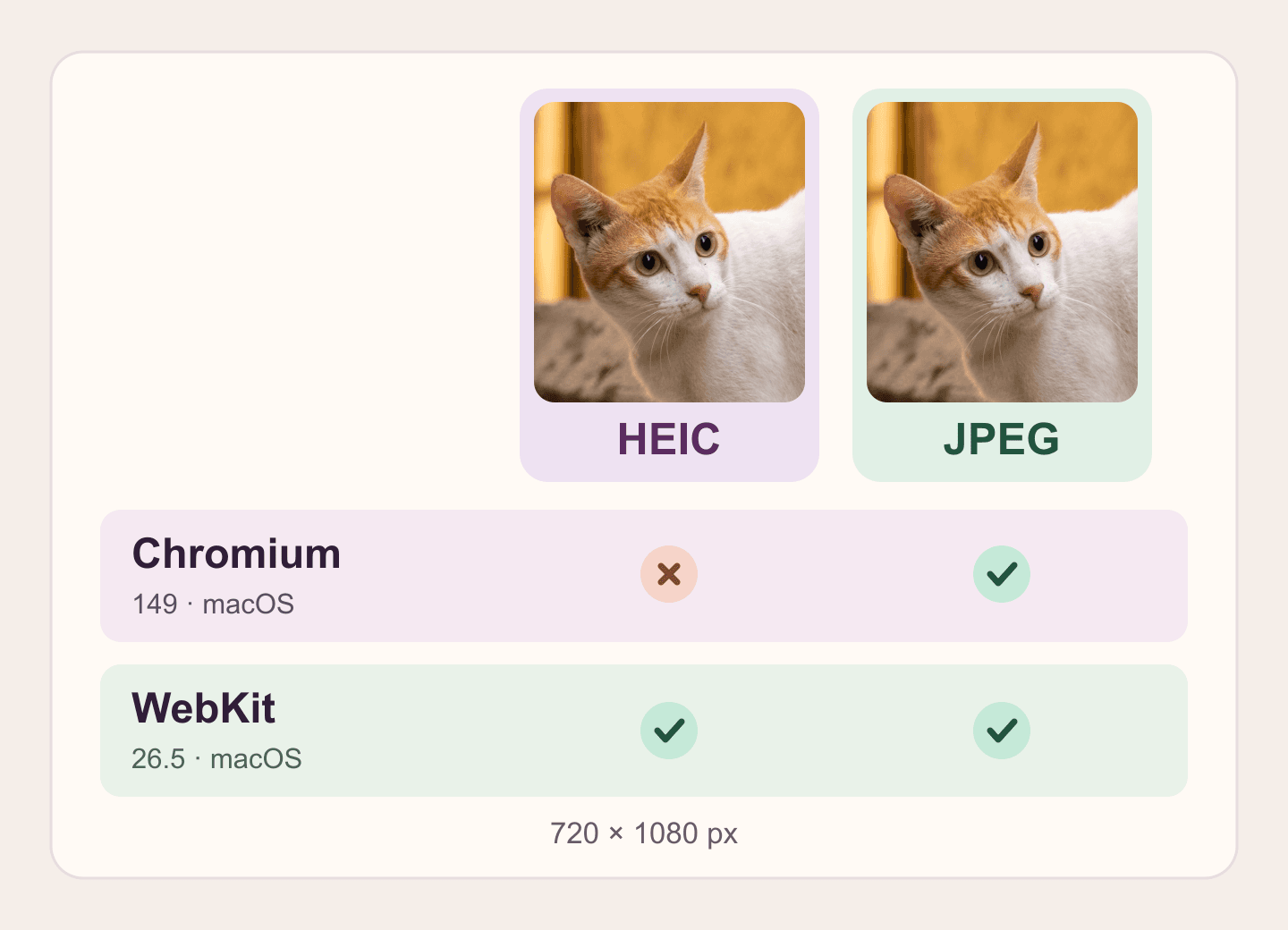
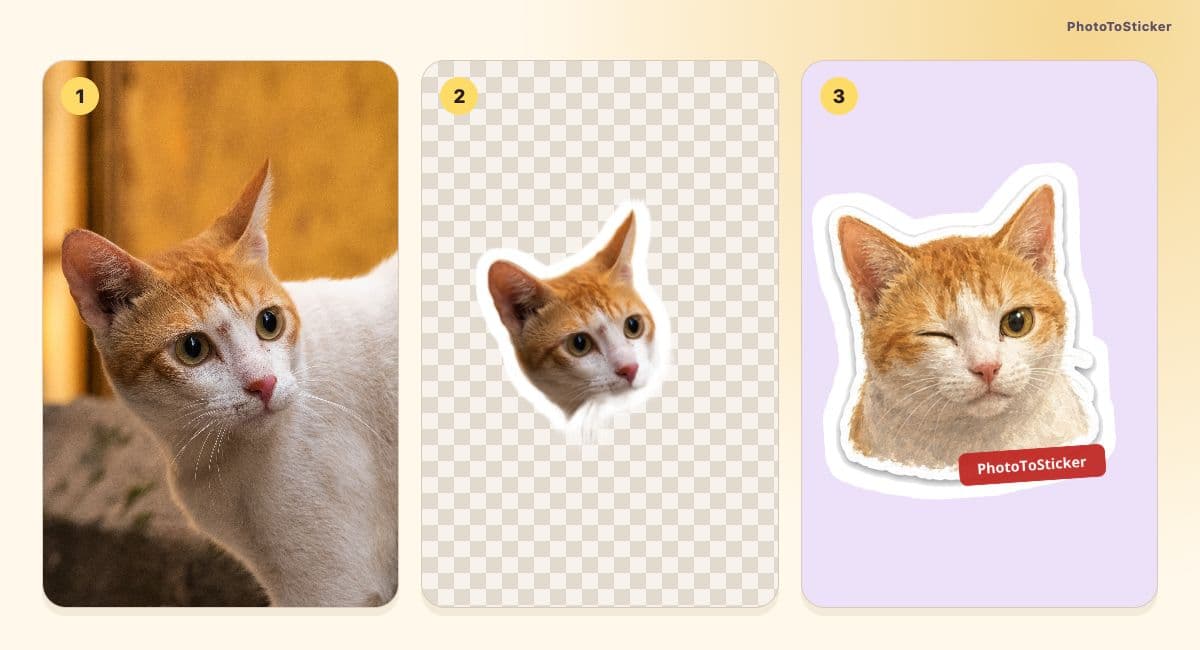
Photo by Janhavi Amin, Pexels. This diagram uses the actual sample images and records the source preview result. It does not show an iPhone screen.
| Desktop browser in this test | HEIC sample | JPEG copy |
|---|---|---|
| Chromium 149 | The studio said it could not open the photo | Source preview opened |
| WebKit 26.5 | Source preview opened | Source preview opened |
You can try the HEIC sample and its JPEG copy. These are two encodings of the same photo. The test covered choosing a file and opening its preview on desktop. An iPhone photo picker may deliver a different copy to the website.
Export the photo you already have
- On an iPhone with Preview available, open the photo file in Preview and use the export option to create a JPEG. Save it as a separate file. Apple’s iPhone Preview guide
- On a Mac, open the HEIC in Preview, choose File → Export, select JPEG, and save the copy under a name you can find again. Apple’s HEIF format guide
- Back in the studio, choose the new file. Look for the photo and the JPG label in the source preview. Check orientation and framing before you make a sticker.
Changing a filename from .heic to .jpg leaves the original image data in place. Use the export step so the browser gets JPEG data.
Read the error before trying again
- The photo could not be opened. Try a JPEG copy and check whether it opens. A damaged or incomplete file can also give an open error, so use a photo you can view normally as a second check.
- The photo is too large. Check the file size of the JPEG you created. If the studio asks for a photo smaller than 15 MB, export a smaller copy. JPEG conversion alone can increase the file size.
- The preview already opens. Check that the right version and crop arrived, then continue from that preview. You can keep the HEIC if it works in your browser.
Keep future capture settings separate
Apple’s Most Compatible camera setting applies to new captures. Export a copy to work with a photo you already took. If a saved sticker later looks like it has a white background, check that exported file separately. Check sticker PNG transparency