PhotoToSticker
  • How It Works
  • Pricing
  • Inspiration
  • Blog
My worksLog inUpload photo
PhotoToSticker
Home/Back to all notes
Platforms

Discord Emoji or Sticker? Choose How the Image Should Appear in Chat

Use a custom emoji in a line of text or as a reaction, and a sticker for an image sent on its own. Compare two PNG samples before uploading.

Written by PhotoToStickerPublishedNovember 12, 20263 min read
English
English简体中文Português (Brasil)EspañolBahasa IndonesiaDeutschFrançaisItaliano日本語한국어
The same sprout in a purple pot appears between marks representing a line of text and as a standalone sticker
On this page
  1. 01Pick the chat action first
  2. 02Make two files from the same artwork
  3. 03Choose the matching upload area
  4. 04When the picker shows both

On this page

  1. 01Pick the chat action first
  2. 02Make two files from the same artwork
  3. 03Choose the matching upload area
  4. 04When the picker shows both

At a glance

  • Choose a custom emoji to put the symbol next to your words or react to a message.
  • Choose a server sticker for a picture you want people to send on its own. The related emoji helps people find it.
  • Use the file checker on the sticker PNG. Try the emoji PNG in Discord’s Emoji area.

Use a custom emoji when the artwork belongs in a line of text or under a message as a reaction. Use a sticker when you want the picture to deliver the whole reply. Decide where the image should appear before preparing the file.

Pick the chat action first

Imagine your server has a little sprout to say thanks. If you want to put it beside “Thanks for helping” or react to someone’s post, make an emoji. If you want people to send the sprout on its own as a cheerful reply, make a sticker.
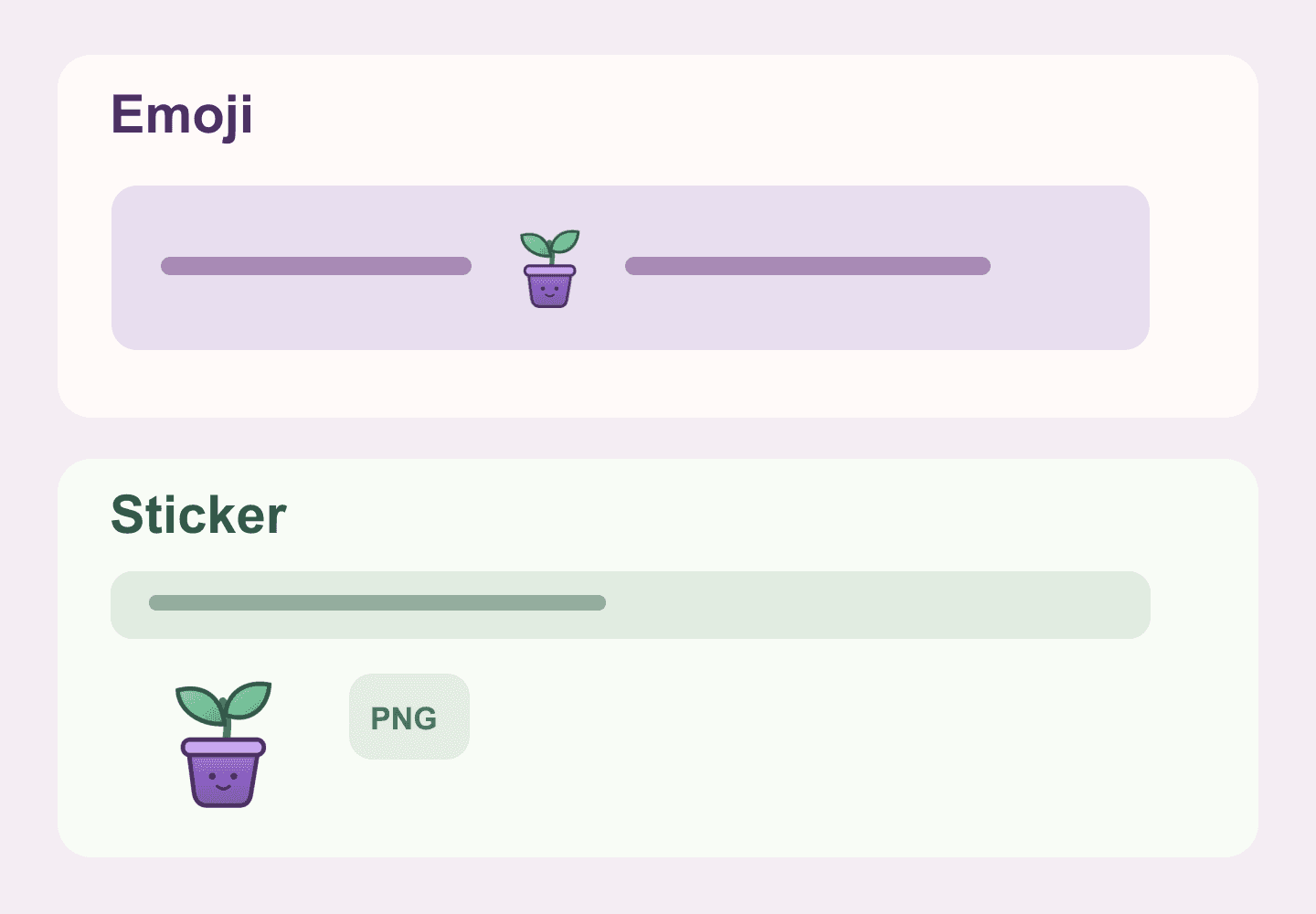
The sprout in a purple pot appears between marks representing text in the emoji example, and below a separate line as its own picture in the sticker example.

Illustration made for this guide on November 12, 2026, using the two downloadable PNGs. The arrangement illustrates two chat uses.

Where the art should appearWhich asset to prepareStatic PNG to start with
Beside words or as a reactionCustom emojiUse PNG and keep the file under 256 KB. The example below uses a 128 × 128 canvas.
As the image in a standalone replyCustom stickerUse a 320 × 320 PNG within the 512 KB file limit.

The emoji size above is the canvas of our sample. Discord’s current custom emoji help specifies the file-size limit and supported formats. The sticker creator guide specifies a 320 × 320 canvas for stickers. Discord custom emoji help · Discord sticker creator guide

Make two files from the same artwork

Download the 128 px sprout emoji example and the 320 px sprout sticker example. They use the same original drawing with transparent space around it. The files have different canvas dimensions, even though the character looks the same.

Try both in the PhotoToSticker sticker checker. The 320 px sample passed the Discord sticker file checks. The 128 px sample failed the Discord sticker dimensions check. The checker reads the file locally. It checks sticker requirements, so its result does not tell you whether Discord will accept an emoji upload.

Choose the matching upload area

  1. Open the server’s settings in the desktop app or browser. If you have access to add expressions, choose Emoji for the inline icon or Stickers for the standalone picture.
  2. Pick the file for that asset type. For the sprout sticker, choose a related Unicode emoji such as 🌱. That association helps the sticker appear in suggestions.
  3. Try the actual use in a channel. Put the emoji in a sentence or choose it as a reaction. For the sticker, choose it from the sticker picker and send it as its own reply. Discord custom sticker help

When the picker shows both

If Discord suggests the sprout sticker for 🌱, selecting the suggestion sends a sticker. Check which item you selected if you expected a small icon and sent a large picture. To keep the image in a sentence, select the custom emoji from the emoji picker.

A PNG downloaded from the web is a file until it is added through a supported platform feature. If you want the artwork to behave like a character on a keyboard, read the guide to custom emoji PNGs and Unicode.
Try the next step

Open the tool that matches this guide, then check your result against the steps above.

Free sticker and emote specification checker

Keep reading

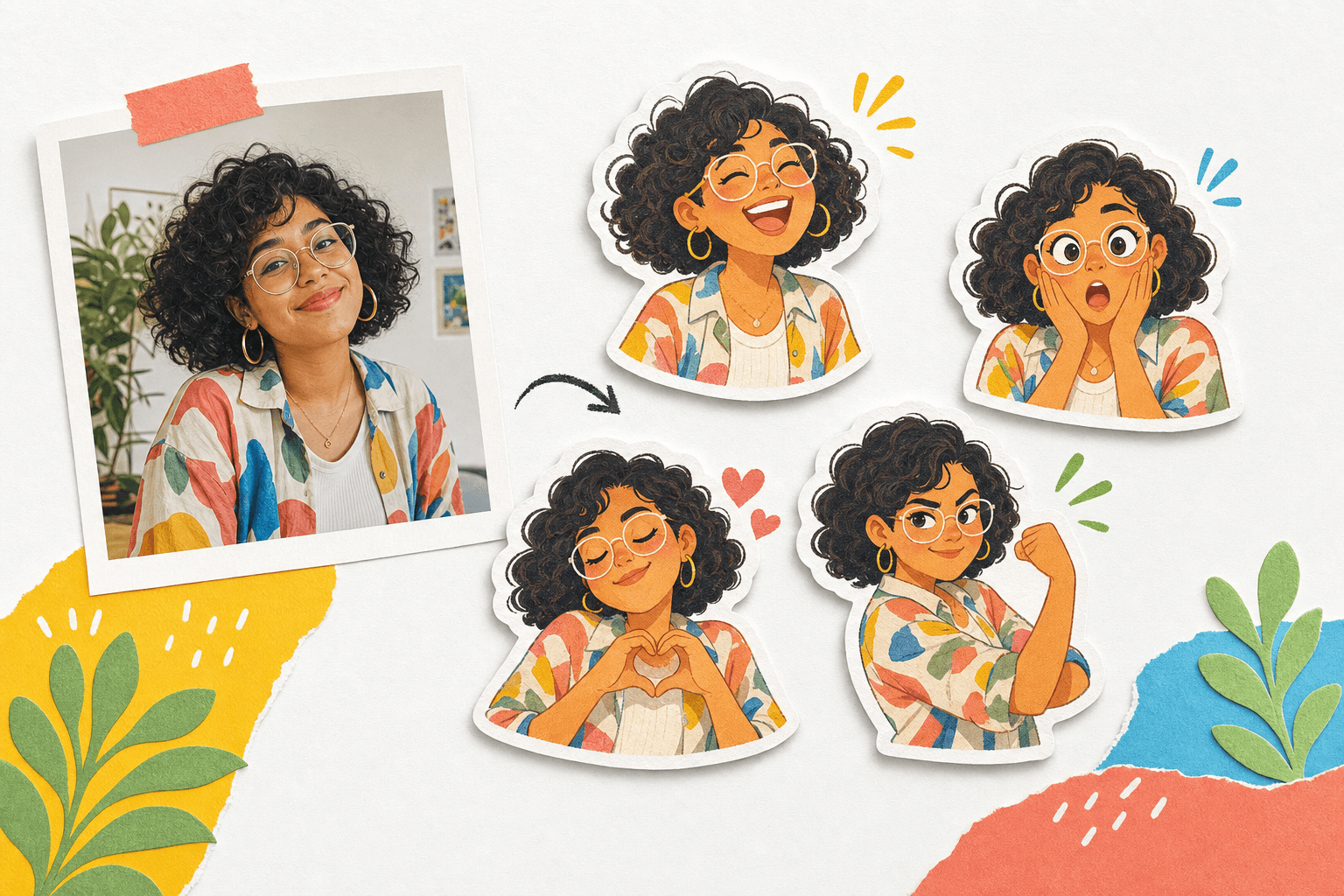
A smiling source portrait with four happy, surprised, loving, and confident illustrated stickers
Platforms

WhatsApp, Telegram, Discord & Twitch Image Size Guide (2026)

Compare verified static sticker and emote dimensions, formats, file-size limits, transparency rules, and import paths, then check a PNG or WebP locally in your browser.

July 12, 2026
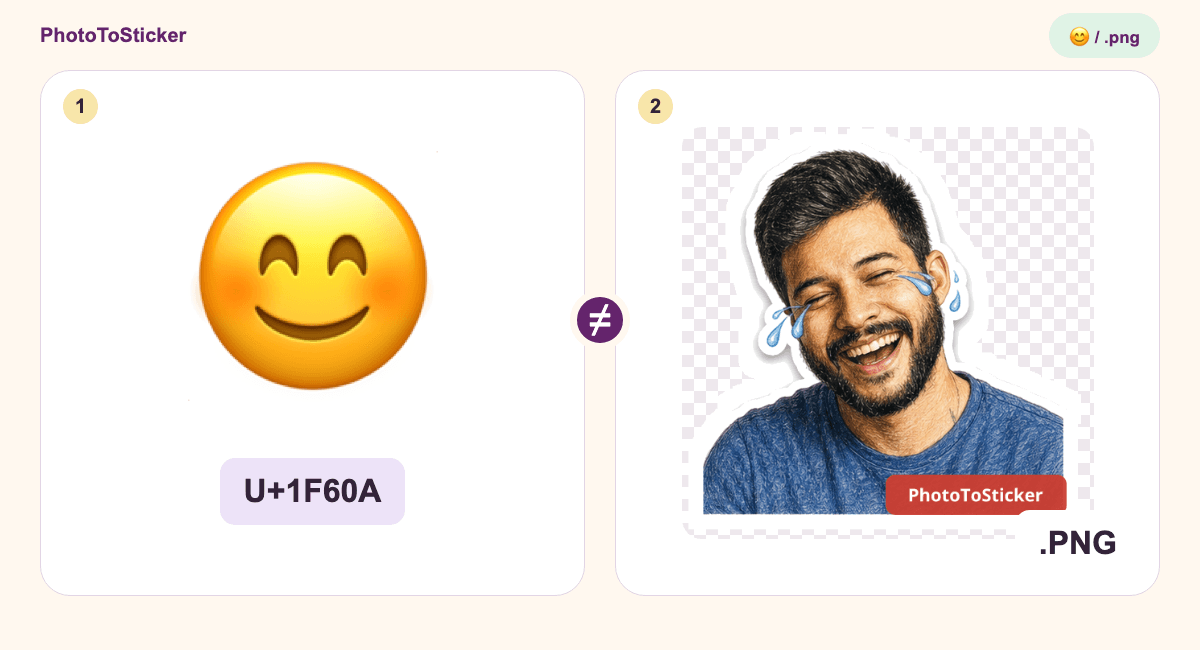
Numbered comparison of a smiling Unicode text character and an existing watermarked PNG image, with their code point and file extension
Pack design

Why Your Custom Emoji PNG Won’t Paste as Text

A custom emoji download is an image, while a bio may accept only text. Inspect a real PNG and choose the right way to create, share or upload your artwork.

November 3, 2026
An existing Hype emote and an original leaf illustration compared as a message reaction and a subscriber identity marker
Pack design

Emote or Subscriber Badge? Choose the Twitch Asset Before You Resize

A reaction inside a message and a badge beside a username need different assets. Compare real PNG examples and choose the right Twitch workflow.

November 5, 2026
PhotoToSticker

Instant stickers stay in your browser. Expression packs are generated only when you request them.

Your instant sticker stays in your browser.

For people aged 13 and older.

support@phototosticker.org

Background removal uses the Apache-2.0 U²-Net model.

X (Twitter)YouTubePinterest

Create

  • AI Avatar Maker
  • Printable Sticker Maker
  • Emoji Maker
  • Logo Sticker Maker

Learn

  • Pricing
  • How It Works
  • About
  • Blog
  • Contact

Sticker formats

  • WhatsApp Sticker Maker
  • Telegram Sticker Pack Maker
  • Twitch Emote Maker

Legal

  • Privacy
  • Terms
  • Acceptable use
  • Cookies

PhotoToSticker.org. All rights reserved.