You made the perfect little reaction, downloaded it, and tried to place it beside your name. The picture stays in your downloads folder, or the text box shows a filename instead. The first thing to check is whether that field accepts pictures or only text.
A PNG can be shared as an image wherever the destination supports it. It does not turn into a new Unicode character just because it looks like an emoji. For a text-only bio, choose a supported keyboard emoji; for your own artwork, use an image attachment or the app’s custom-emoji upload route.
Three things that can look like an emoji
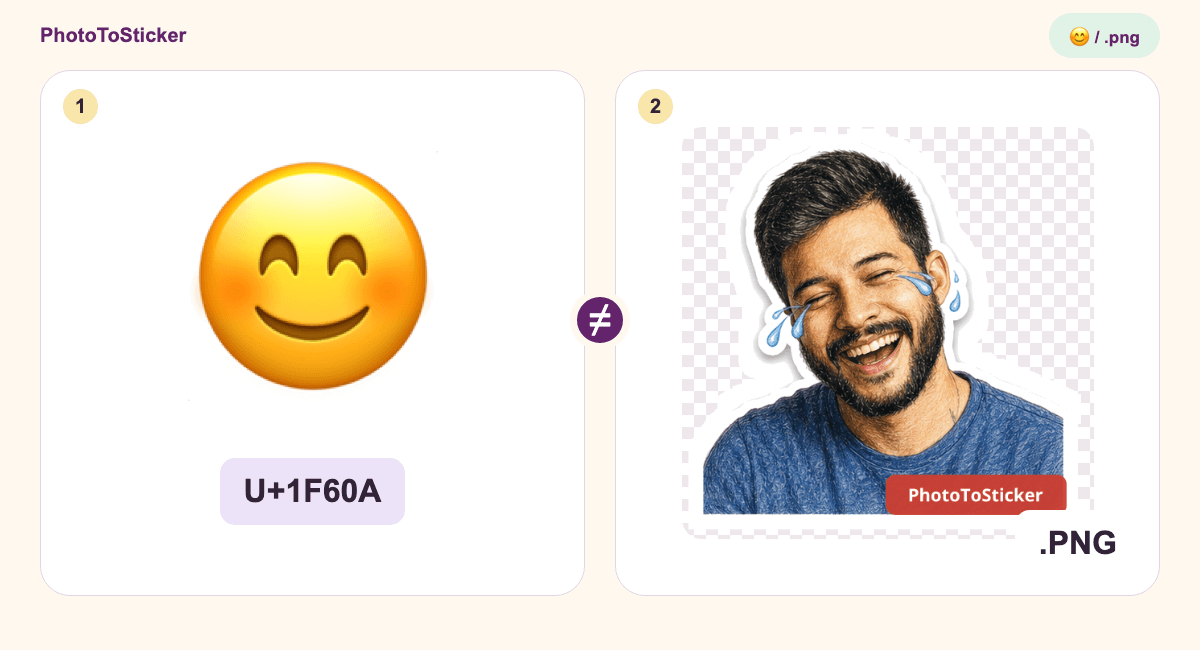
The smiley in a keyboard, a transparent drawing and a server’s custom emoji may look similar. What travels between apps is different.
| What you have | What is being shared | What to check next |
|---|---|---|
| A keyboard emoji such as 😊 | Unicode text: a character or sequence | Does the destination support that emoji? |
| A downloaded PNG | An image file | Does the field accept image attachments or pasting? |
| A platform’s custom emoji | An image registered inside that service | Is it uploaded there, and can you use it in that location? |
An app can display an image beside text without creating a new universal character. A name such as :moon_coffee: is an app-specific shortcut when the service recognizes it; typing those letters elsewhere can leave the letters unchanged. The Unicode FAQ explains the distinction between standardized characters and more customized pictures.
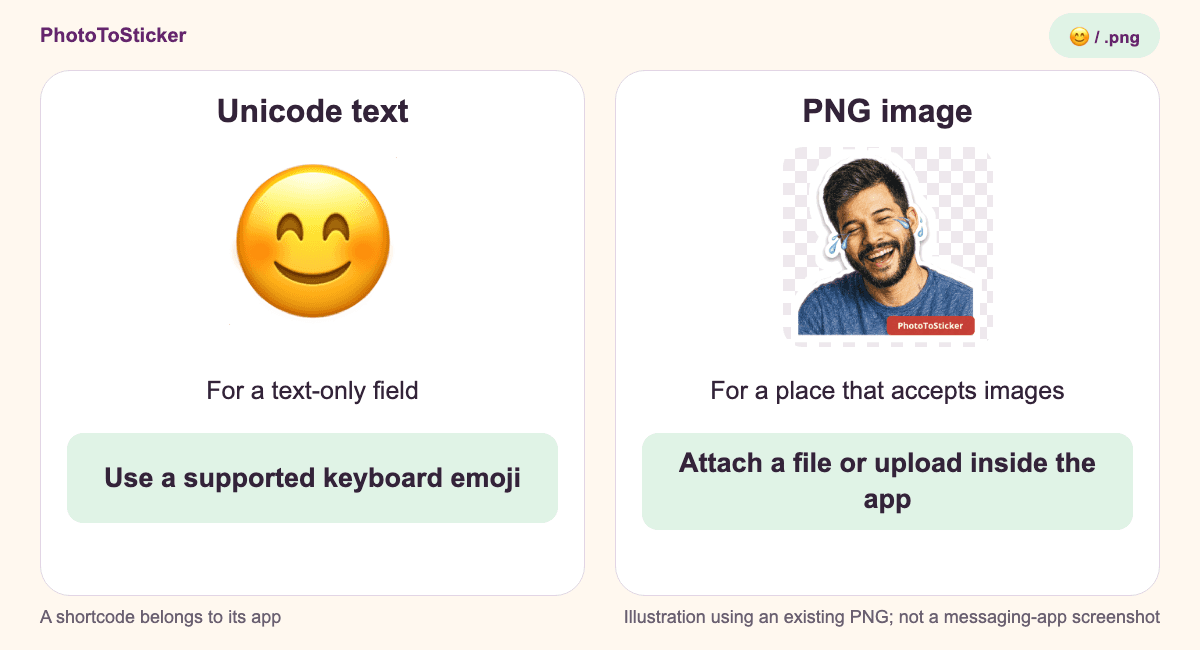
An original diagram using an existing site PNG. It is not a screenshot of a messaging app or a successful upload.
Inspect a real file before trying another paste
Open the existing transparent PNG example. It is a 512 × 512 image containing 388,242 bytes. You can save that file and inspect its image information. Copying its address shares a link, not a new character for someone else’s keyboard.
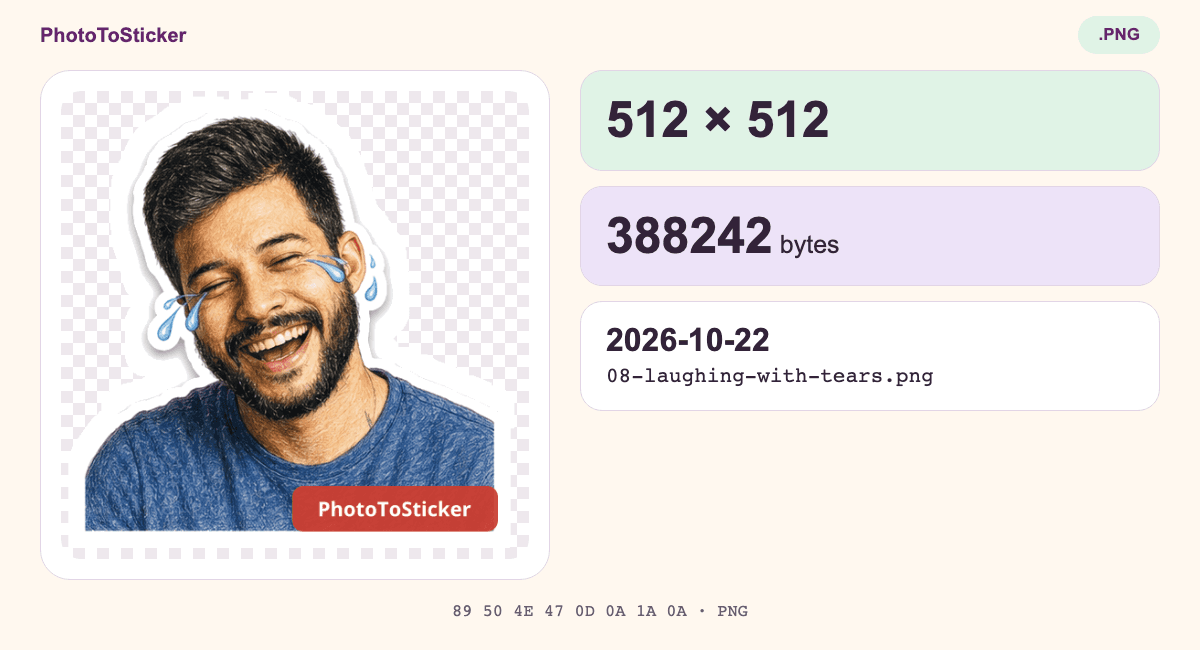
This watermarked Pencil Journal sticker was generated on October 22, 2026, from the site’s licensed example photo by Italo Melo on Pexels. It demonstrates an image file; it is not a new Emoji Maker result or the result of the description below.
This particular download is not ready for a Slack or Discord custom-emoji upload: its file size exceeds both services’ current guidance or limit. Slack recommends square transparent images under 128 KB; Discord requires custom emoji under 256 KB. The dimensions alone do not establish compatibility. Prepare a separate suitable export if that is your destination, and recheck the current rules.
Here is a useful comparison you can try yourself:
- Insert a normal keyboard emoji into the destination’s text field.
- Use the destination’s image or attachment control for the PNG, if one exists.
- If the picture needs to appear in an emoji picker, look for that app’s custom-emoji settings instead of repeating plain-text paste.
These are checks for your chosen app, not a claim that we tested your phone or workspace. Some rich editors support image pasting; plain-text fields do not carry that image data.
Follow the route your destination supports
For a bio, name or other text-only field, use an existing supported Unicode emoji and add words when the meaning matters. Renaming a PNG or enlarging it cannot register a character.
For an image-friendly message, post or document, attach or insert the downloaded picture. Check transparency and cropping in the destination before sending it. A transparent background helps the picture fit a surface; it does not change the file into text.
For a workspace or server emoji picker, upload through that service and check permissions. Slack’s official instructions and Discord’s custom-emoji guide describe their respective upload routes. A successful upload in one service does not establish availability in another app, bio or keyboard.
Make PNG artwork when an image is what you need
The PhotoToSticker Emoji Maker starts with a written idea. For example, you could describe “a sleepy crescent moon holding a tiny coffee cup, simple silhouette, no letters.” This is an illustrative input idea, not a result generated for this article.
- Enter a description of 3–300 characters. Add one permitted JPG, PNG or WebP reference up to 10 MiB only if it helps explain the subject or look.
- Choose Classic, 3D, Flat or Pixel. Sign in and check current access and pricing before requesting generation. The description and optional reference are sent for that request; this is not browser-local generation.
- Review the sixteen alternatives. A successful request produces one 4 × 4 sheet, split into sixteen separate transparent 512 × 512 PNGs. These are alternative interpretations of your idea, rather than a fixed set of sixteen portrait reactions.
- Download the individual files you want or the ZIP within the stated 24-hour window. Inspect the file you intend to use and prepare it for its destination.
The tool provides raster PNG artwork. It does not install a keyboard, create a font or Unicode entry, deliver SVG, publish a platform pack, or guarantee acceptance by an app. For a messaging-sticker task, continue with the platform format guide before choosing an import route.
Quick answers when the result still looks wrong
Does “Copy image” turn the picture into an emoji character?
No. Where supported, it puts image data on the clipboard for an image-aware destination. A text-only field can reject it or handle a different clipboard representation. That does not create a new Unicode character.
Why does a normal keyboard emoji appear as a square?
The receiving app or font may lack support for that character or complete sequence. This is a different problem from trying to insert a PNG as text. Check the full emoji, supported software and another recipient view before changing your artwork.
Can I reuse a custom emoji’s short name everywhere?
Only where that service understands the name and allows access to the custom image. A shortcode is not a universal registration. Sharing the actual file as an image can be a separate option where attachments are allowed.
Start with the place you want the symbol to appear. If that place accepts your own images, the Emoji Maker can help you create artwork for that route. If it accepts only text, choose a supported keyboard character first.