Use an emote when viewers should send a reaction inside a chat message. Use a subscriber badge when the image should identify a subscriber beside their name. Decide which job you need before choosing an export size. A small PNG can look like either, but its dimensions do not tell Twitch how to use it.
Imagine the same channel character in two requests. “Let people celebrate a great play” describes an emote. “Give subscribers a recognizable mark beside their names” describes a badge. They can share an art style while remaining separate assets and separate setup tasks.
Start with where the image belongs
An emote is part of what someone says. A subscriber badge accompanies the identity of the person speaking in the relevant channel. Twitch also has other badge types; a custom subscriber design is not a way to issue an official role or campaign badge.
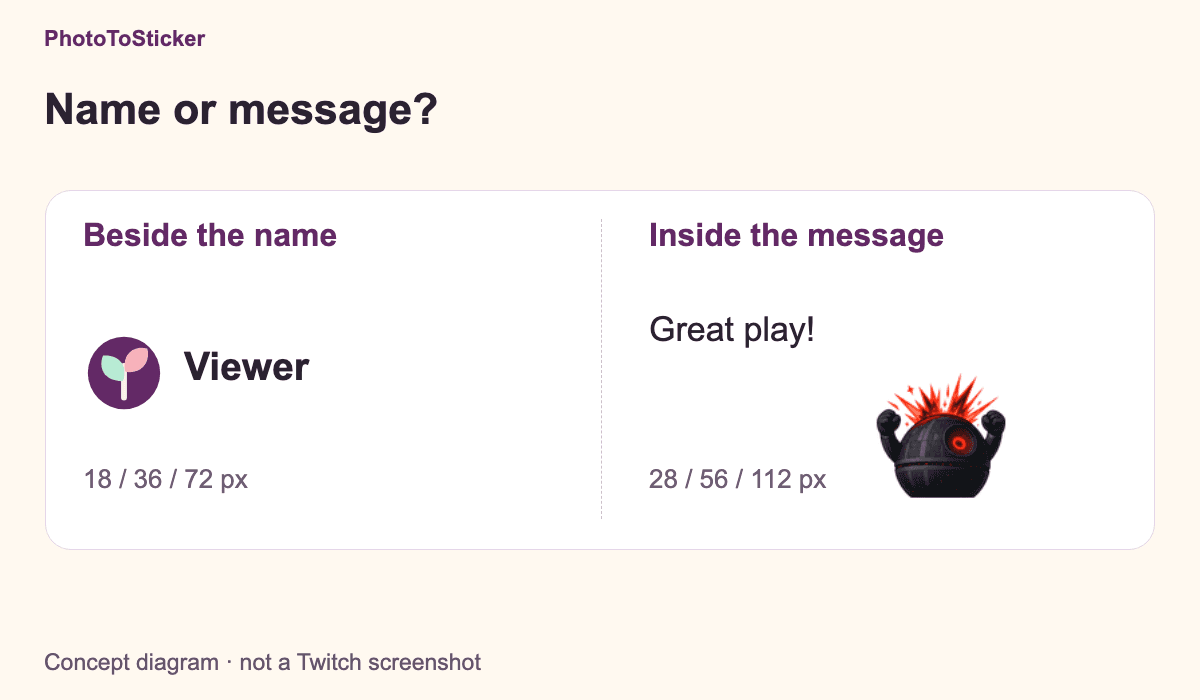
An original explanation diagram, not a Twitch screenshot. The leaf is our illustrative artwork; the character is an existing PhotoToSticker emote example. No real viewer, badge grant or live submission is shown.
Write a one-line brief before opening an editor: “This image expresses a reaction” or “This image marks a subscriber.” That decision prevents you from preparing a whole set of files for the wrong destination.
Keep the two file families separate
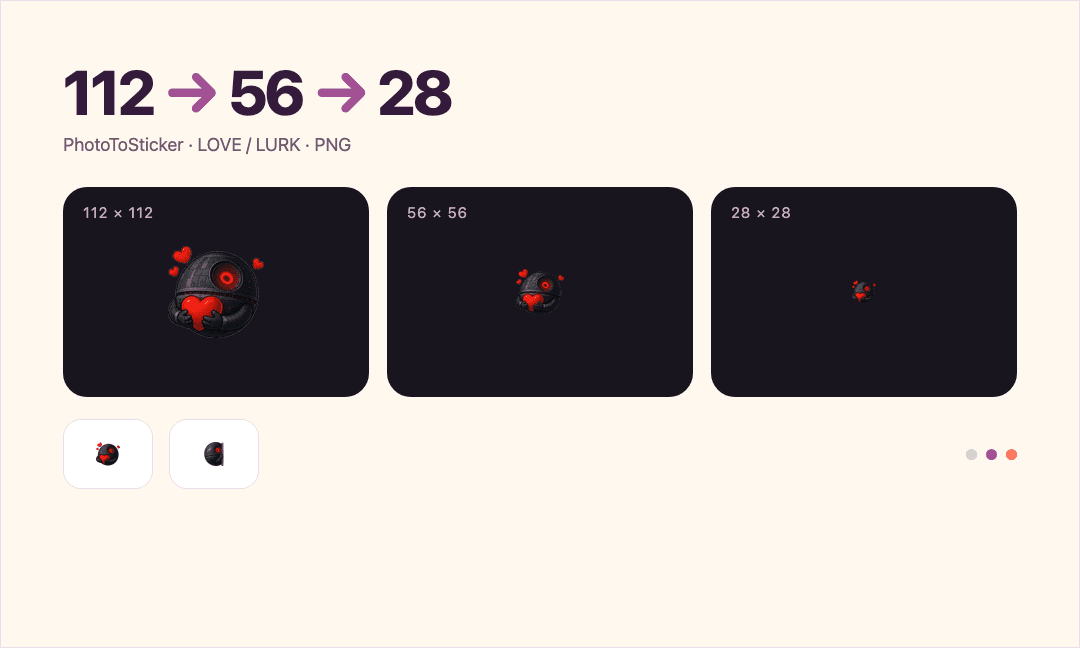
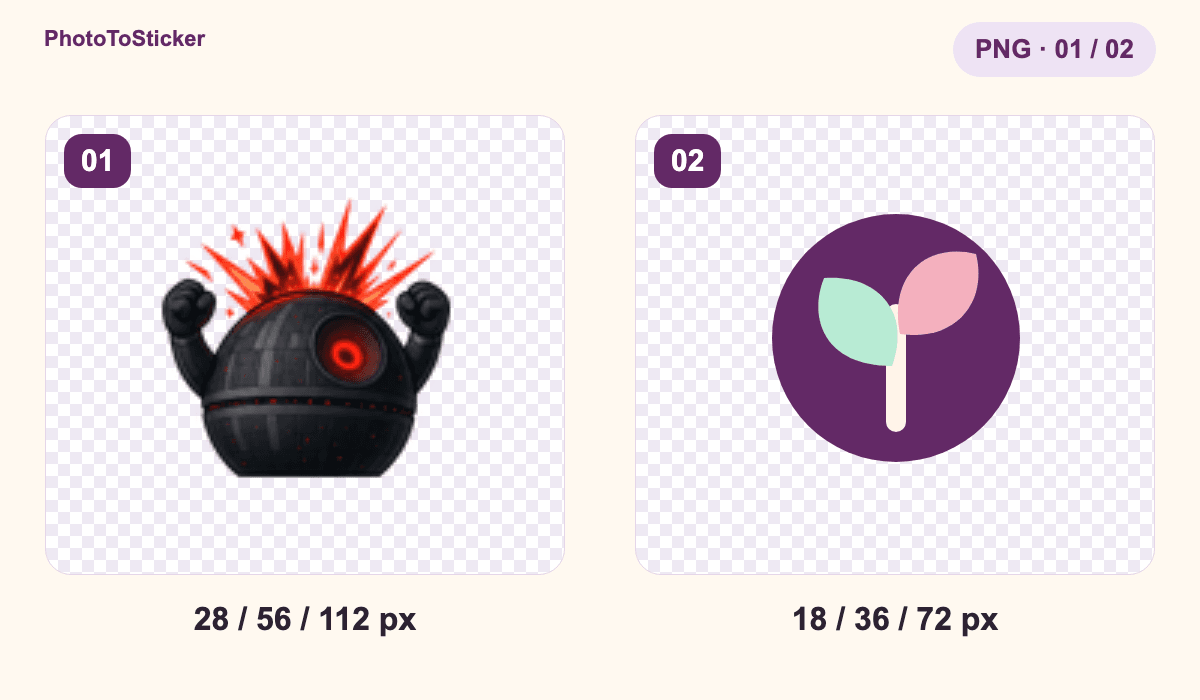
For the static examples here, the emote family uses 28, 56 and 112 pixel squares. The badge family uses 18, 36 and 72 pixel squares. Twitch documents these separate image variants in its official developer reference. This comparison helps identify the asset; it is not a complete list of current upload requirements.
| Question | Emote | Subscriber badge |
|---|---|---|
| What does it communicate? | A reaction within the message | Subscriber identity beside the name |
| Which three image sizes are relevant here? | 28 / 56 / 112 px | 18 / 36 / 72 px |
| What should stay consistent? | The same reaction across its sizes | The same badge design across its sizes |
| Does resizing configure it on Twitch? | No | No |
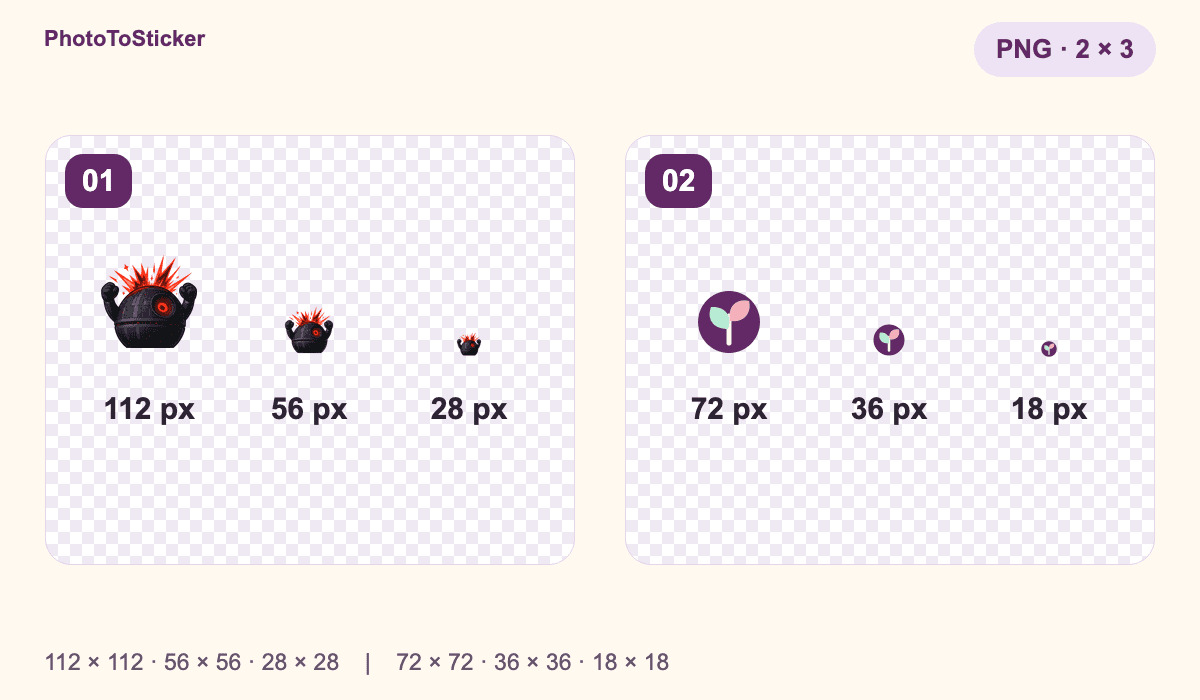
The Hype files were produced locally on 5 November 2026 by the site's current output normalizer from an existing demonstration sheet. The leaf artwork was created for this article on the same date. It is not output from a PhotoToSticker badge generator or an approved Twitch badge. The figure scales with the page.
Open the actual 28 × 28 Hype PNG to inspect a real emote file. The 18 × 18 leaf PNG is an original illustration of the other size family. It does not carry a subscriber identity or any Twitch permission. The demonstration sheet's original AI-generation date has not been newly verified; today's work resized existing artwork and did not request a new AI generation.
Choose the workflow after choosing the job
For reaction artwork, the Twitch Emote Maker is the relevant PhotoToSticker tool. Its current workflow prepares eight fixed static reactions and 28, 56 and 112 pixel PNG files. Review each result and download the individual image or the Twitch ZIP. Submission to Twitch is a separate step.
For a subscriber badge, prepare the artwork in an editor suited to that task, export the badge family, then use Twitch's Subscriber Badge Guide for the current account and uploader instructions. The emote tool does not offer a badge-export mode. Selecting a smaller emote preview is not a shortcut to configuring a badge.
If you want the same character in both, keep separate folders and filenames for the two asset families. A recognizable theme can connect them; matching filenames or shrinking the same image does not make their roles interchangeable.
Check the handoff before you upload
- Read the original brief again: reaction or subscriber identity?
- Open one individual PNG and check which family it belongs to. A full contact sheet and a ZIP are containers, not individual images to place in a slot.
- Keep matching versions of that design together, and keep any badge variants separate from the emote reactions.
- Check the current emote guidance or badge guidance for the destination you actually chose. File limits, account access and review are separate checks.
This article does not claim a successful Twitch upload or approval. For a broader file checklist, use the platform image-size guide. If the asset is definitely an emote and its small version is unclear, continue with the separate 28 px readability guide.
Questions before commissioning the artwork
Can the same drawing inspire both?
Yes. Prepare two deliberate versions for their different jobs and check each destination independently. The idea can match without treating one exported file family as the other.
Can I turn an emote into a badge by renaming the PNG?
Renaming changes the filename. It does not change the pixels, create the other size family or assign a subscriber badge in Twitch.
Will PhotoToSticker install either asset in my channel?
You review and submit your own assets. The current Twitch tool prepares static emote candidates; it does not grant badges, create animation or guarantee acceptance. Start with the image's job, then choose the tool that actually supports it.