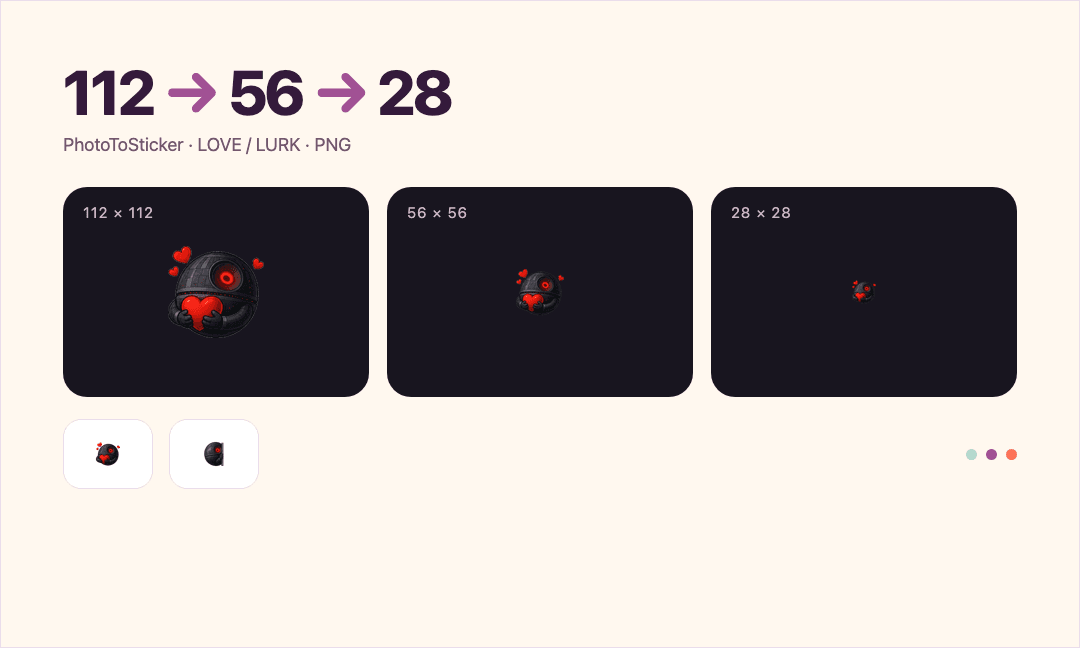
If your Twitch emote looks good at 112 px but unclear at 28 px, inspect the actual 28 × 28 PNG first. View it at native dimensions, check it against light and dark backgrounds, and decide whether the expression is still clear. A large source helps with resizing, but it cannot make every eyelash, finger or letter survive a smaller canvas.
The useful question is simple: can someone understand the reaction without opening a larger version? This guide covers static emotes. It uses an existing PhotoToSticker sample processed again locally, without a new AI request or a live Twitch upload.
Start with the file, then check the display
Open the downloaded PNG in a viewer that can show its native size. Use a 100% view and check that the application has not fitted a tiny image to the whole window. In a browser, also reset page zoom. Display scaling and device pixel density can still affect appearance, so record the client and device when comparing results.
Inspect 112, 56 and 28 px together. The largest version helps locate an edge problem; the smallest reveals whether the idea needs fewer details. Avoid reviewing a screenshot of the download page instead of the file.
| What you see | What to inspect next |
|---|---|
| The 28 px file is unclear in a local viewer | Expression, crop, competing details and contrast in the artwork |
| The local file is readable, but one client looks different | Client, zoom, display scaling and background before changing the art |
| A white or dark rectangle surrounds the character | Whether the exported background is actually transparent |
| The shape disappears only on a dark surface | Separation between the character edge and the background |
A deliberately drawn white outline is different from an opaque white box. Check what the edge contributes before removing it. This is diagnosis, not a promise that one transparency setting fixes every problem.
Understand what gets lost between 112 and 28
Reducing 112 px to 28 px divides each side by four. The smaller canvas has one sixteenth of the pixel area. A feature two pixels wide in the 112 px file spans roughly half a pixel after that reduction; its color can blend with neighboring features rather than remain a distinct line.
This is an explanation of the risk, not a universal minimum stroke rule. Placement, color and surrounding shapes matter too. More sharpening cannot reconstruct a hand that is missing from the crop or make two nearly identical expressions communicate different reactions.
Give one reaction the largest share of attention
Choose the main cue: an open mouth, a raised hand, a heart or a strong silhouette. If the reaction depends on a tiny caption, try a gesture-led version in your original artwork. There is no need to translate a whole sentence into the image. Viewers can use the same visual cue across languages.
Change the source deliberately
Keep a clean master and export each small candidate from that master. Avoid repeatedly enlarging an already-small PNG and shrinking it again. If a wide crop leaves the face tiny, prepare a closer reference in your own editor while preserving the gesture that carries the meaning.
These are artwork choices. The current PhotoToSticker Twitch tool does not provide manual crop, outline, sharpening or text controls for repairing a generated result.
Inspect a real sample on two backgrounds
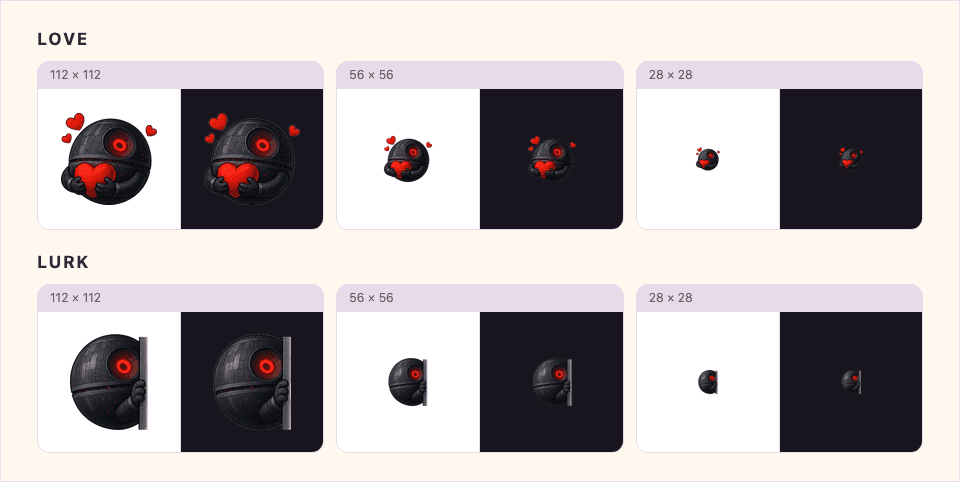
Existing site sample, processed again through the current local output normalizer. This is a browser comparison of the resulting PNGs, not a fresh AI generation or a screenshot of Twitch. The figure can scale with your screen; open the files below to inspect native dimensions.
In this editorial check, Love keeps a visible red heart and red eye at 28 px. The small panel lines and hand details become less distinct. Lurk keeps the red eye and vertical edge, while the small gripping hand is harder to separate. The dark body also has weaker separation on the dark comparison surface.
Those observations explain what to inspect, rather than prove that every viewer will identify each reaction. Ask someone unfamiliar with your channel what they see before telling them the intended name.
Open the actual Love 28 px PNG and Lurk 28 px PNG. If your image viewer enlarges them automatically, switch to native size. Save the original PNG rather than a screenshot, which can flatten the transparent background.
| Sample cue | At 112 px | At 28 px in this check |
|---|---|---|
| Love: red heart | Fingers and heart shape are separable | Heart remains prominent; fingers carry less information |
| Lurk: peeking beside an edge | Hand and vertical edge are easy to inspect | Eye and edge remain; hand is less distinct |
| Dark character body | Panel details are visible | Fine lines merge and dark-background contrast deserves attention |
The aim is a useful expression at small size, not identical visible detail at every size.
Use the Twitch tool for the right stage
If you need a new reaction set from a creator or channel-character image, open the Twitch Emote Maker. Use one permitted JPG, PNG or WebP up to 15 MB with a clear face or silhouette.
Sign in and check the generation access shown on the page before requesting generation. This is a requested AI workflow: the reference uploads for processing after your request. It is separate from the site's browser-local instant sticker editing.
A successful set contains the fixed eight reactions Hype, LOL, Love, Rage, Shock, Sad, GG and Lurk, each as transparent static PNGs at 112, 56 and 28 px. The page lets you inspect those sizes on light and dark surfaces. It does not let you choose a different reaction list or manually redraw a weak result.
Review all eight, not just the first attractive large image. If one reaction fails the small-size check, revise your permitted source artwork externally or choose a clearer reference before deciding whether another generation is appropriate. A new result can differ; it is not a guaranteed repair.
Download the files you intend to keep while the result is available. The ZIP organizes the three sizes in folders, for example emotes/28x28/love.png and emotes/112x112/love.png. Keep matching reactions together. Do not upload the full contact sheet in place of an individual emote.
Make a short pre-submission check
Check the actual file first, then check the current Twitch emote guidelines. Twitch distinguishes manual-size upload from auto-resize. The platform image-size guide is a useful place to compare requirements without turning this readability check into another export workflow.
Before submitting, confirm that the PNG has the intended dimensions, transparent background and recognizable reaction. Compare both backgrounds, inspect for clipped hands or mouths, and check that the three sizes describe the same emote. Keep the master and exported files together so a later change can be traced.
PhotoToSticker prepares candidates; you submit them yourself. It does not animate the files, create subscriber badges, reserve channel slots or guarantee acceptance. A file that opens correctly still needs the account access and content review required by Twitch.
Questions before you redraw everything
Will a bigger source fix the smallest emote?
A clean larger source avoids starting with missing information. It does not guarantee that detailed artwork remains readable after reduction. Change the visual priorities if the reaction depends on details that disappear.
Should I sharpen the 28 px PNG?
A restrained adjustment in an external editor may help a particular edge. Compare the result at native size on both backgrounds and keep the underlying reaction consistent across sizes. Sharpening is not a substitute for a clear expression, and the current Twitch tool has no sharpening slider.
Can I use this process for an animated emote?
This article and its samples are static PNGs. Motion, GIF transparency and timing add different checks. The PhotoToSticker Twitch workflow described here does not generate animation.
What if the local file looks fine but Twitch looks different?
Compare the actual saved file with the same client, background and zoom settings, then document which device or view differs. Use current Twitch support guidance for a persistent display issue. Do not infer one universal cause from another creator's older animated-emote report.