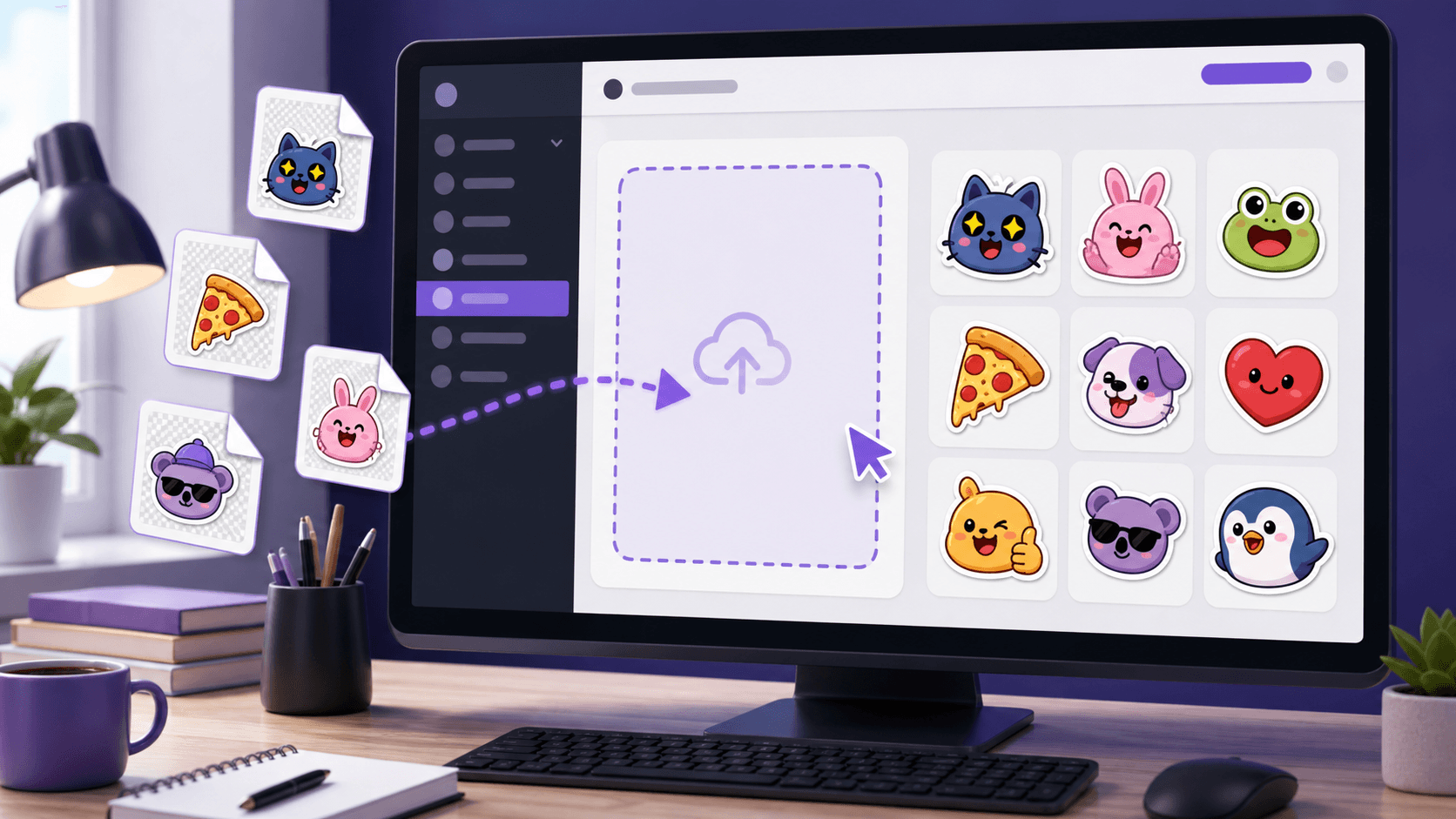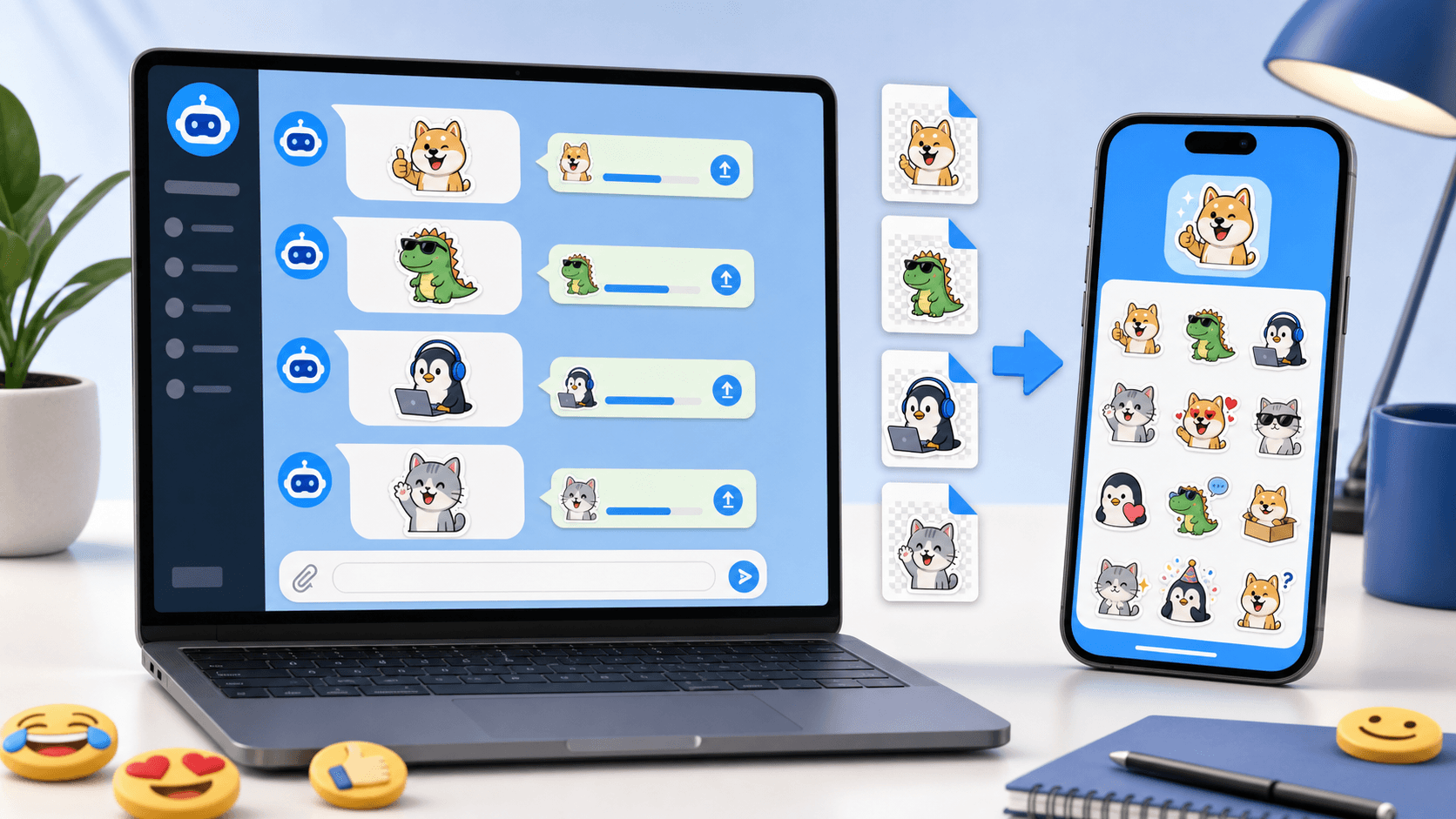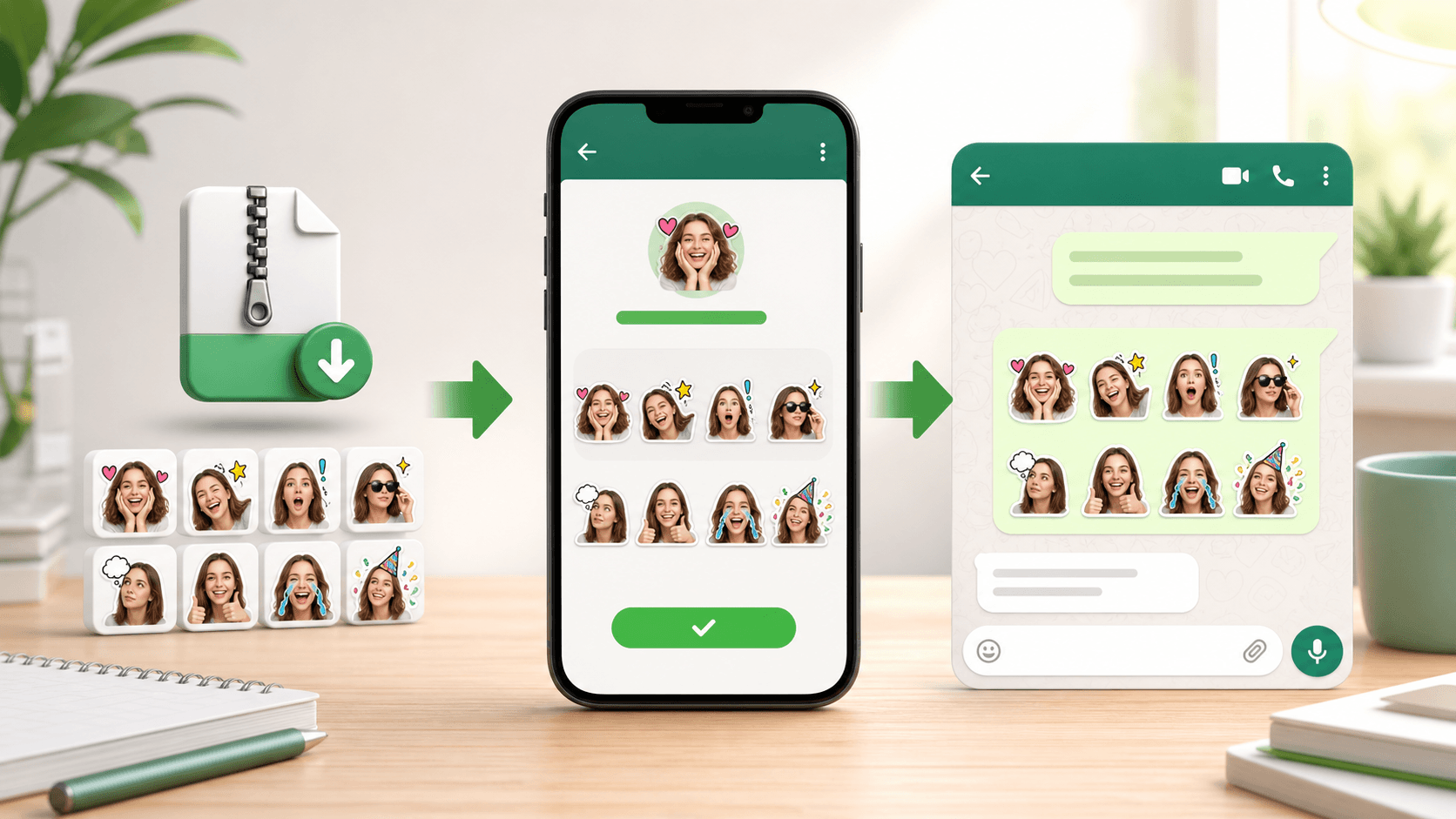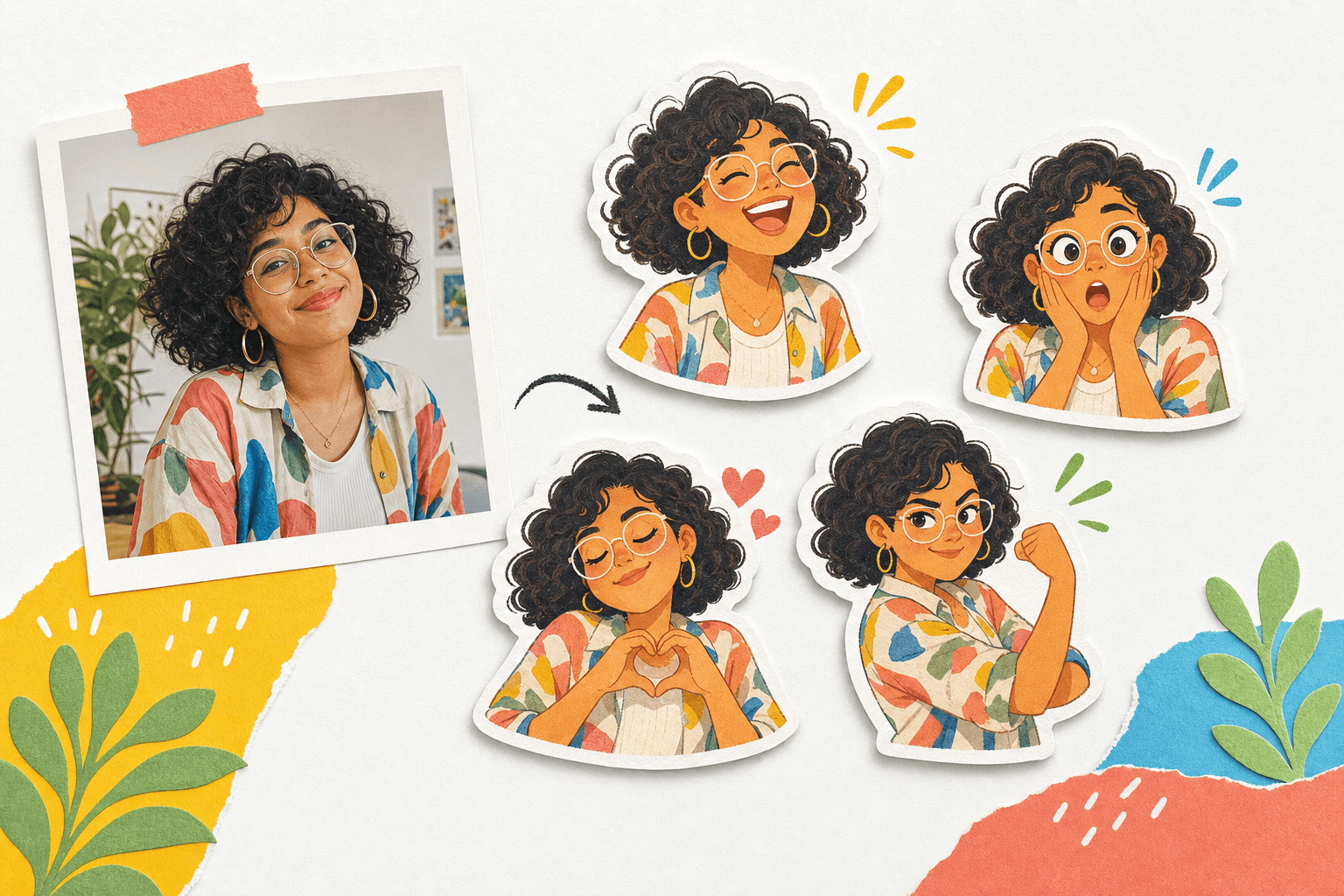
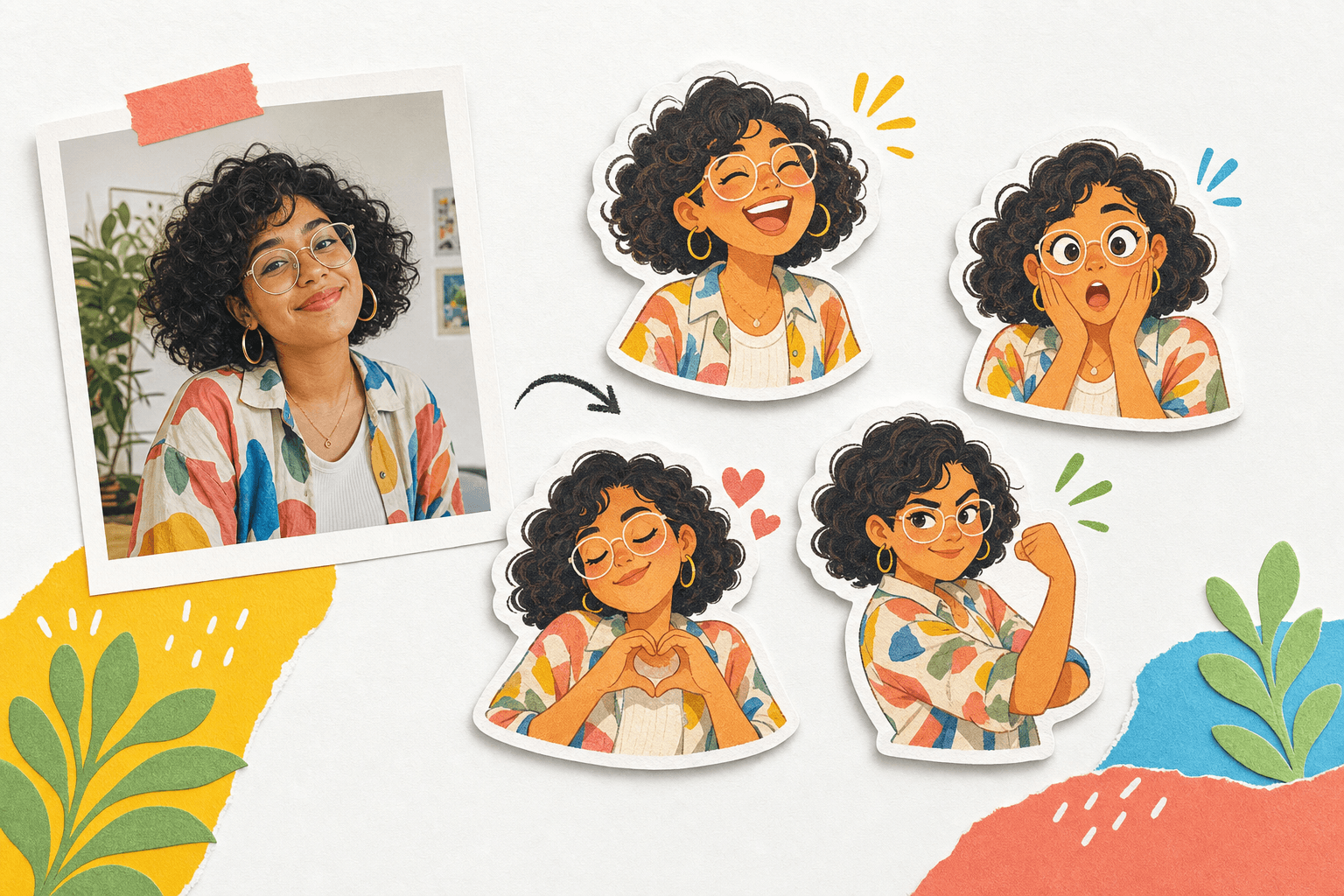
A personal sticker pack becomes useful when it can replace the replies you already send. The goal is not to collect sixteen unrelated faces. It is to build a small visual vocabulary that feels recognizable, quick to read, and broad enough for everyday conversations.
PhotoToSticker now handles that production path. It creates a browser-local cutout with a white outline, then can use the selected source to generate a consistent expression grid and export platform-sized files in a ZIP. The principles below help you choose a strong source and review the generated pack.
If you need one profile-ready portrait before making a pack, the Avatar Maker keeps the workflow focused on a single image. For a smaller set of chat reactions, the Emoji Maker starts with a compact expression preset.
Start with one readable source photo
Choose a photo where the subject is easy to recognize before any editing begins. A strong source usually has:
- a face or main subject that occupies a useful part of the frame;
- separation between the subject and the background;
- an expression that still makes sense when viewed small;
- enough visible space around hair, hands, or accessories for a future cut line;
- lighting that preserves important features without deep shadows.
A complicated background is not automatically unusable, but it creates more edge decisions. Fine hair, transparent glasses, and objects crossing the face all need careful review in a real cutout workflow.
Build an emotional range, not sixteen synonyms
Begin with the replies that recur in your conversations. A practical pack often needs several different jobs:
- Warm responses: joy, love, celebration, and thanks.
- Fast acknowledgements: okay, a wink, or a confident reaction.
- Conversation turns: thinking, confusion, surprise, and disbelief.
- Difficult moments: sadness, crying, frustration, or anger.
- Personality beats: sleepy, pleading, or an expression specific to the person in the photo.
The difference between two moods should be visible in silhouette and posture, not only in a tiny eyebrow change. When expressions are distinct, people can find the right sticker without studying the whole pack.
Check every reaction at chat size
Large artwork can hide weak decisions. Review each sticker at roughly the size it will occupy beside a short message. At that scale, ask:
- Can you identify the person immediately?
- Is the emotion clear without reading a caption?
- Does the face remain distinct from the background?
- Is the pose different enough from neighboring reactions?
- Are small props helping the idea, or adding noise?
Avoid relying on embedded words. Text becomes hard to read quickly, complicates localization, and can make a reaction feel less flexible.
Make the pack feel related
Consistency makes sixteen reactions feel like one set. Keep the subject at a similar visual scale, use one border treatment, and avoid changing the crop logic from sticker to sticker. A few varied poses add energy, but the same face, edge style, and overall contrast should connect the set.
Finish by naming three real conversations where each reaction would be useful. If a sticker has no clear moment, replace it with a response you send often. That final edit is what turns a gallery of expressions into a pack people can actually use.